Introduction
RadioLink ER16 receiver is a 2.4G remote control system receiver developed based on the open-source project ExpressLRS. It is compatible with ExpressLRS 2.4G modules and transmitters. It employs LoRa modulation technology, and features high receiving sensitivity, strong anti-interference capabilities, and long range. It operates in the globally free 2.4G frequency band.
The GitHub address: https://github.com/ExpressLRS/ExpressLRS
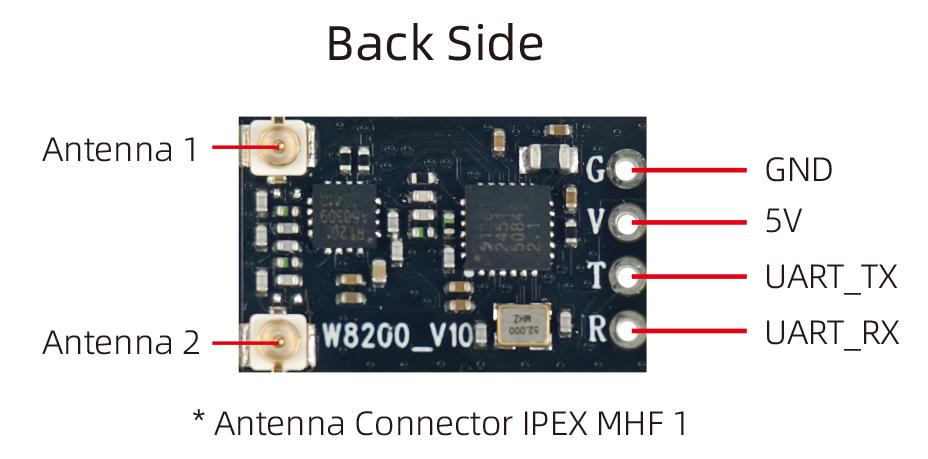
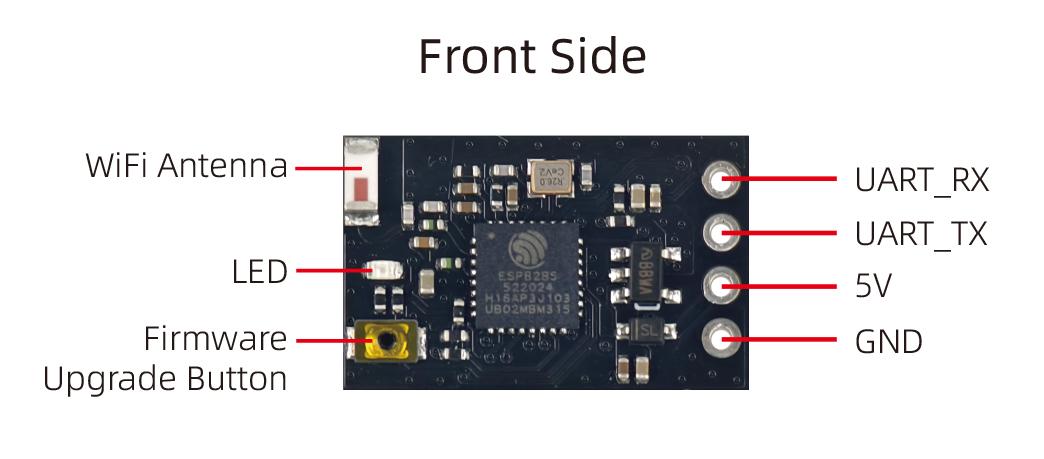
Specifications
Dimension: 20x12.5mm
Weight: 1.2g
Working Voltage: 4-9V
Frequency Band: 2.4GHz ISM
Telemetry Power: 22dBm
Antenna Connector: Dual IPEX MHF 1
Output Protocol: CRSF
Compatible Transmitters: All transmitters compatible with 2.4GHz ExpressLRS modules
LED Indication
Solid on: Binding successfully/Transmission signal received
Flash double quickly: Binding status
Flash slowly: No transmission signal received
Flash fast: WiFi upgrade status
Binding
Power on ER16 receiver three times consecutively, with a power-up interval of less than 1.5 seconds.
The indicator light of the receiver will flash twice, indicating it has entered the binding status.
Press the BIND button on the ExpressLRS remote control (transmitter or module).
The indicator light of the receiver will turn solid, indicating successful binding.
After successful binding, the program will record the paired remote control device. The next power-on will restore the last binding record. No need to bind them every time the receiver is powered on.
Configure Betaflight Flight Controller
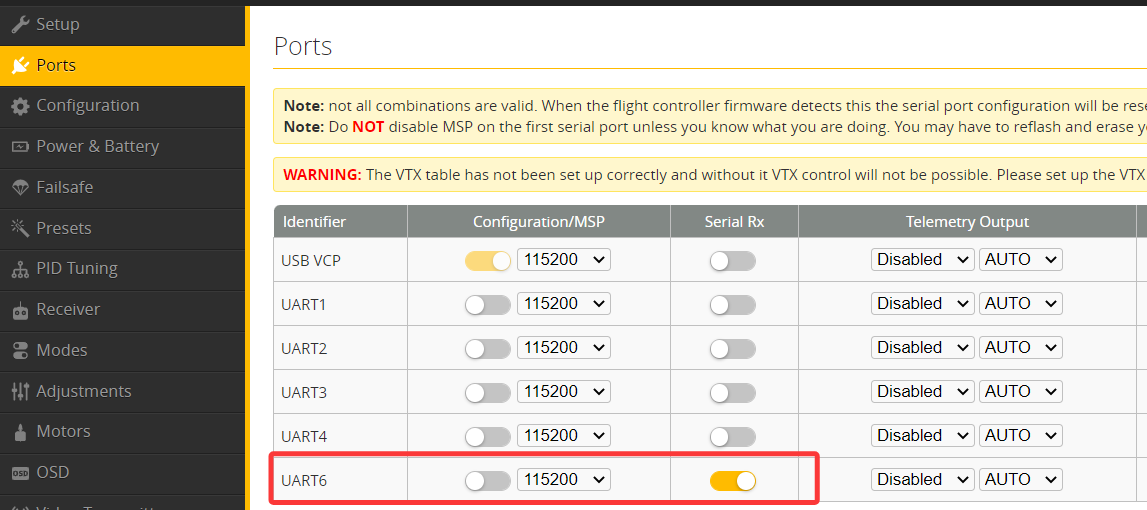
Connect ER16 to any serial port of the Betaflight flight controller. (Take UART6 as an example to show the settings):
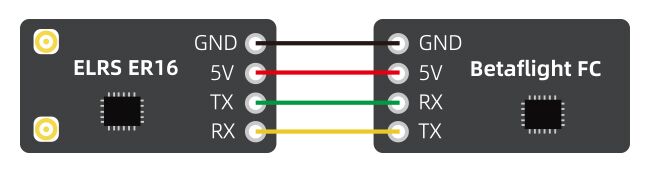
Connect the flight controller to the computer. Open Betaflight Configurator and connect. Click Ports menu and enable Serial RX of UART6.
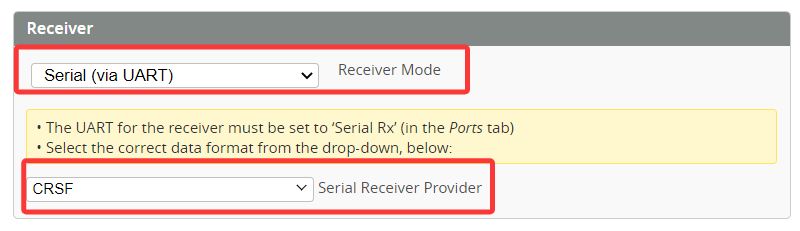
Click Receiver menu. Select Serial (via UART) for receiver mode, and set CRSF for serial receiver provider.
Configure APM Flight Controller
Connect ER16 to the TELEM1 port of the APM flight controller. The following example uses the TELEM1 port of the Radiolink CrossFlight flight controller:
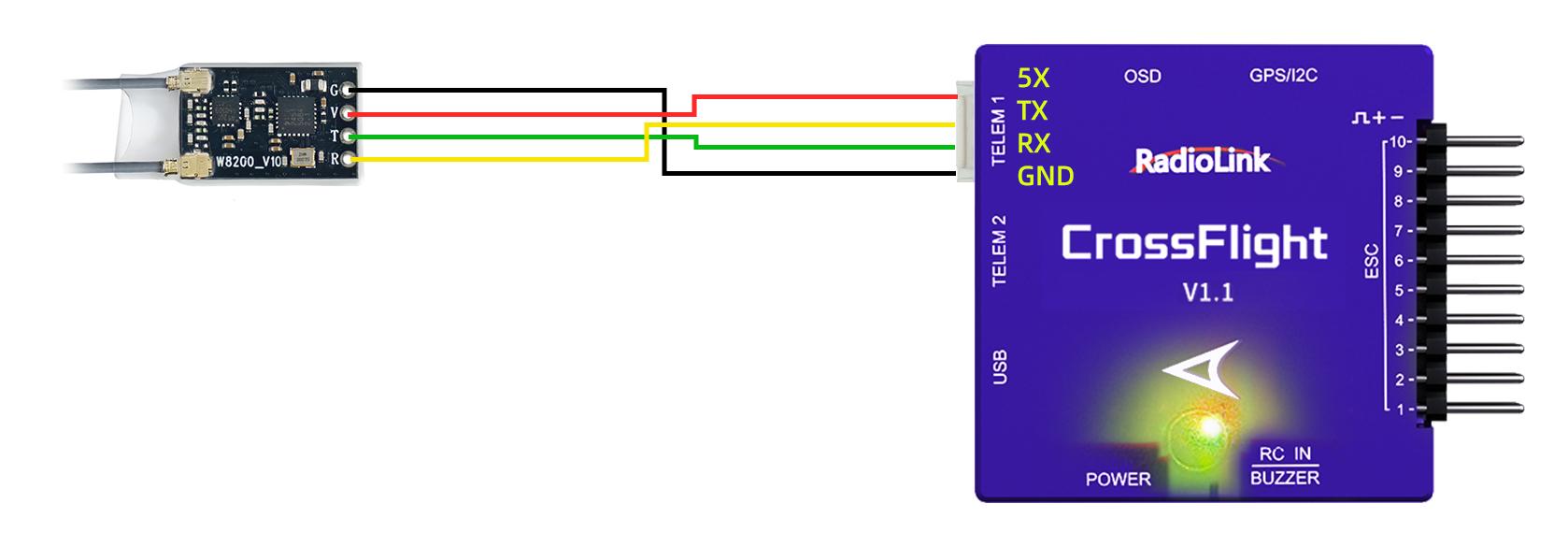
Connect CrossFlight flight controller to the computer and set the following 3 parameters in Mission Planner:
Set SERIAL1_BAUD to 115
Set SERIAL1_OPTIONS to 0
Set SERIAL1_PROTOCOL to 23
Upgrade Firmware
This example uses the method of downloading the officially released firmware and then using ELRS to compile the firmware. The default firmware version is ExpressLRS-3.3.
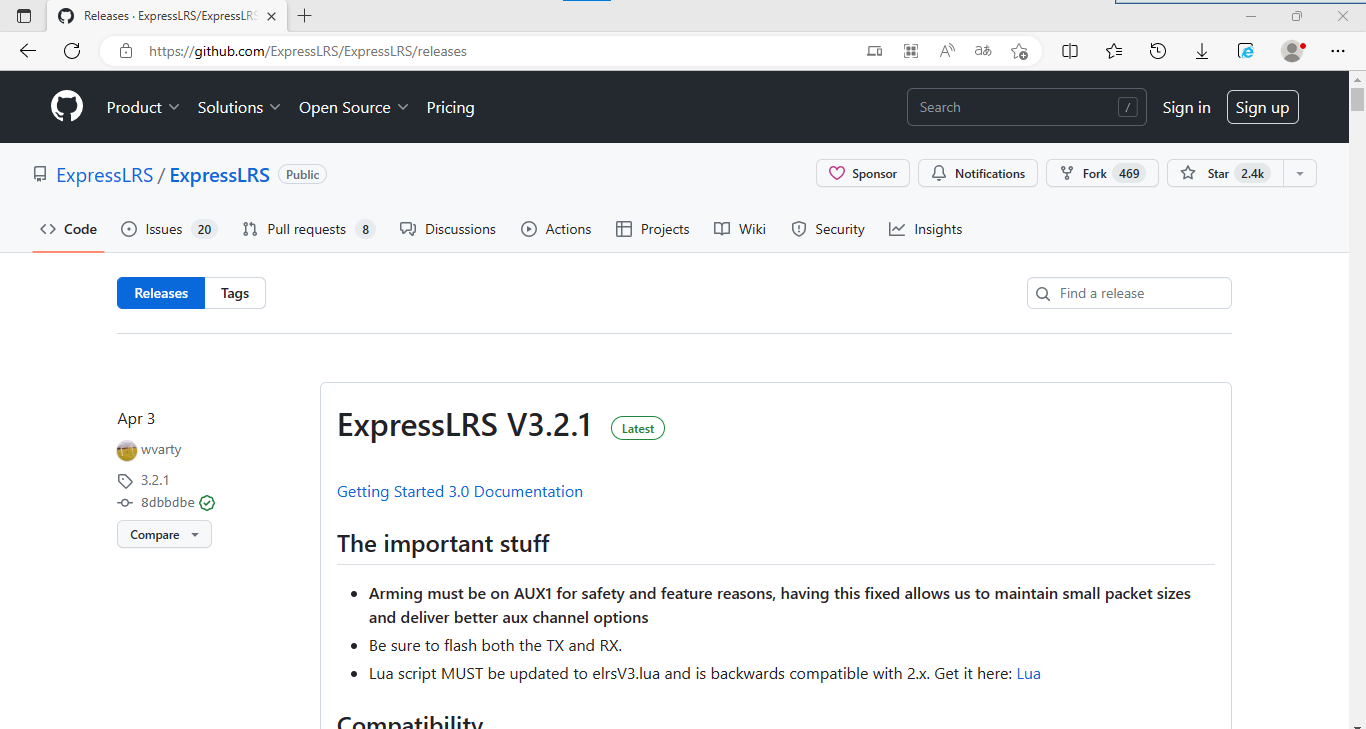
Download the official ELRS firmware. You can use the latest version or choose an older one. It is best to keep the version of the transmitter and the receiver the same. Inconsistencies may cause malfunctions. Here is the link to download the firmware:
https://github.com/ExpressLRS/ExpressLRS/releases
Download ExpressLRS Configurator tool. Download the appropriate tool based on your computer system. Here is the download link:
https://github.com/ExpressLRS/ExpressLRS-Configurator/releases
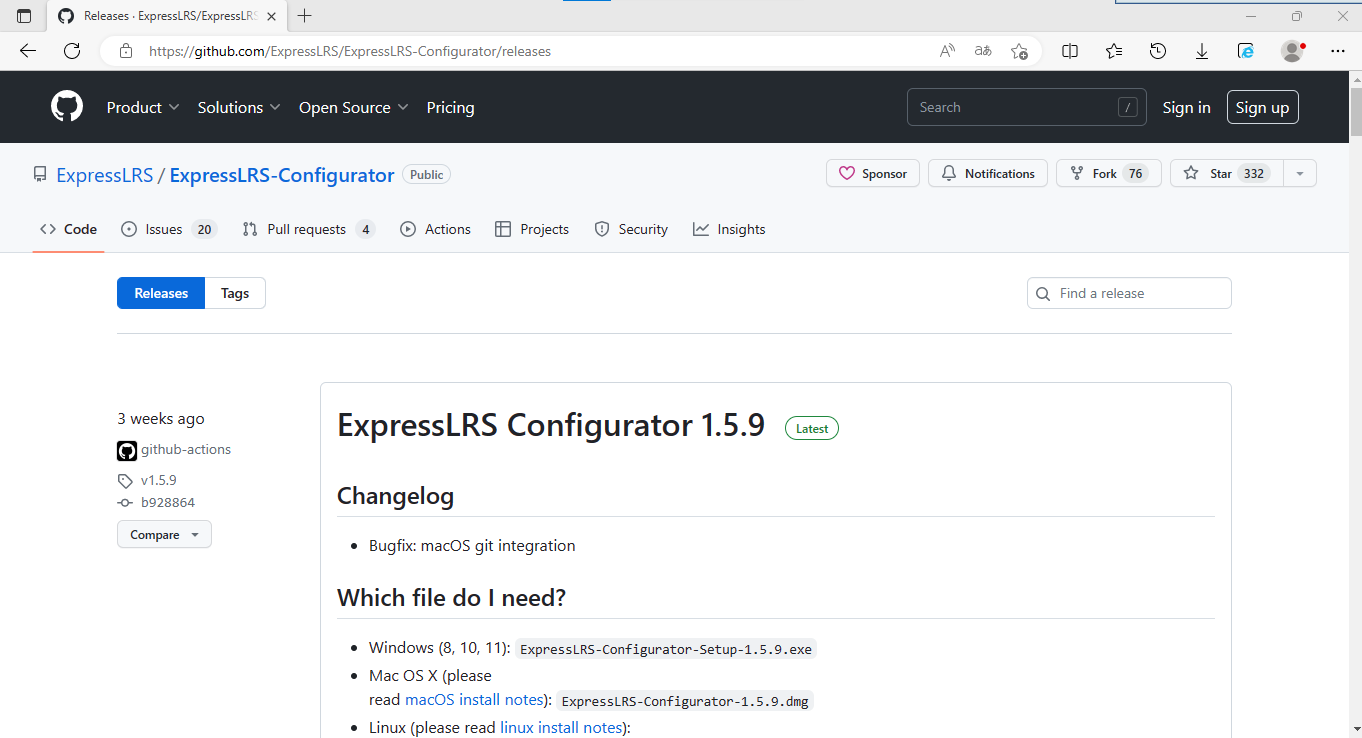
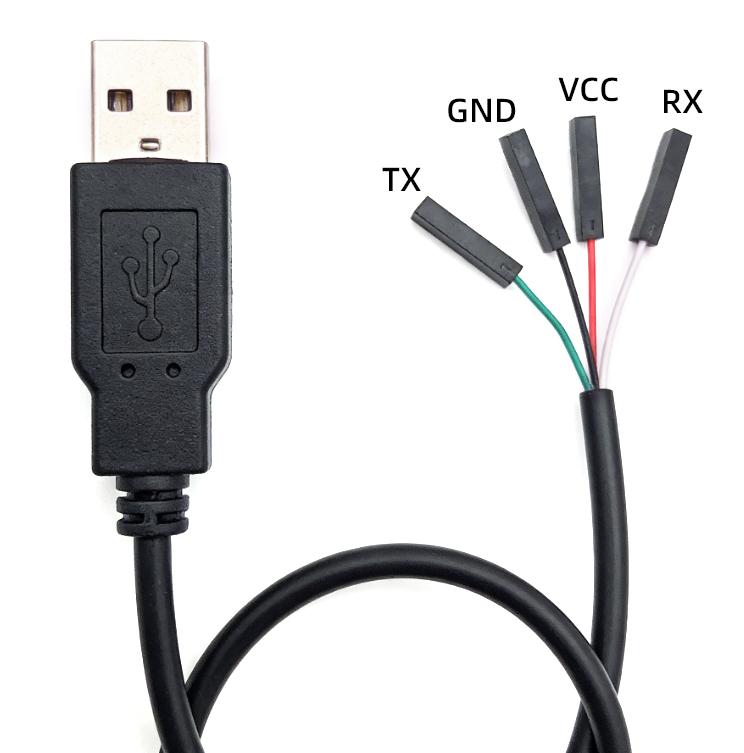
Install ExpressLRS Configurator.
Prepare a USB to UART TTL adapter cable (as shown on the right). Please note that the adapter cable needs to be cross-connected to the T and R pin of the receiver.
Open ExpressLRS Configurator. Select Configurator -- click LOCAL, and use offline local compilation.
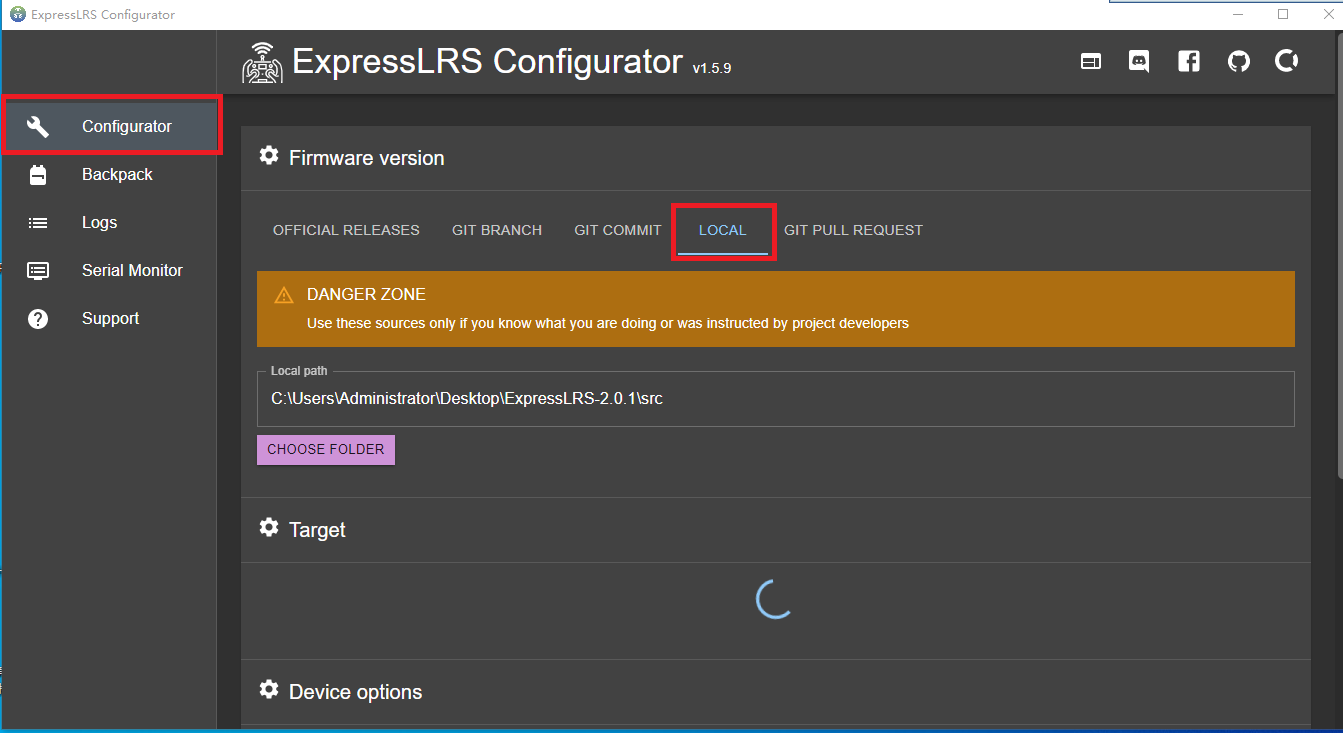
Unzip the firmware downloaded. We use ExpressLRS-2.0.1 as an example.
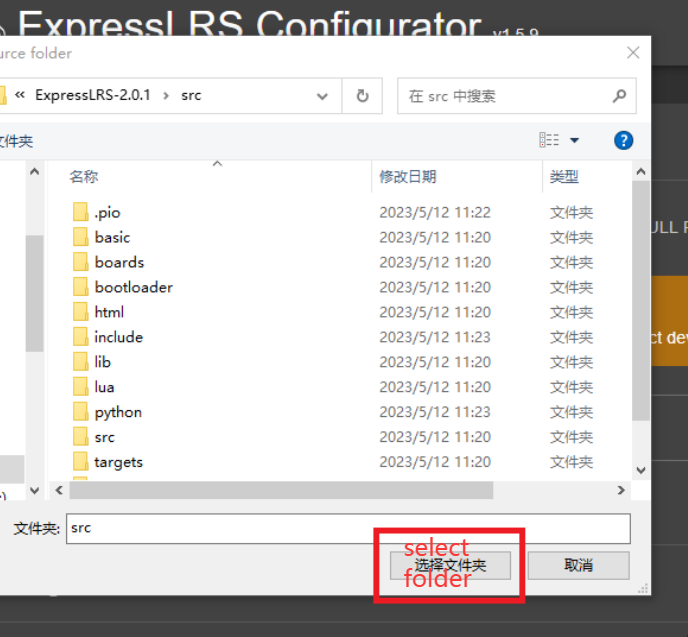
Click “CHOOSE FOLDER” to select the file path to be compiled. Please note that you need to enter the src folder. Otherwise, compilation will not be successful.
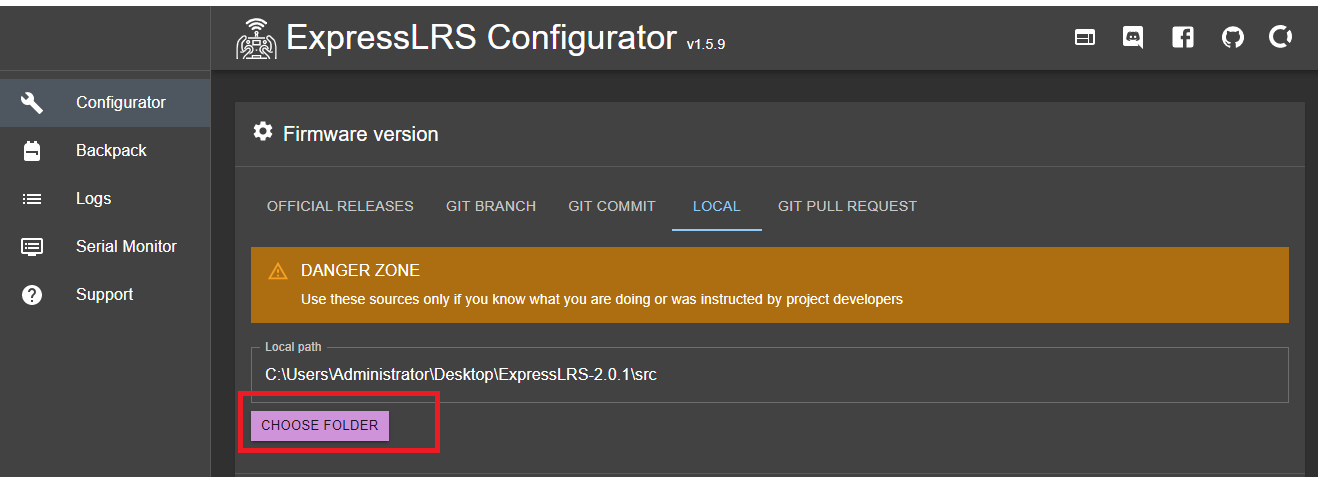
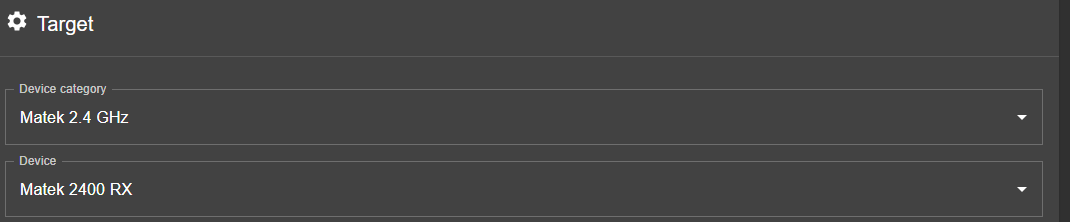
Select the hardware information. Select "Matek 2.4GHz" from the "Device category" dropdown menu; and select "Matek 2400 RX" from the "Device" dropdown menu. If the firmware version is ExpressLRS-3.xx, the model selected in the "Device" dropdown menu is "Matek 2400 RX R24D".
Select serial port (UART) for flashing method. You can also try other download methods on your own.

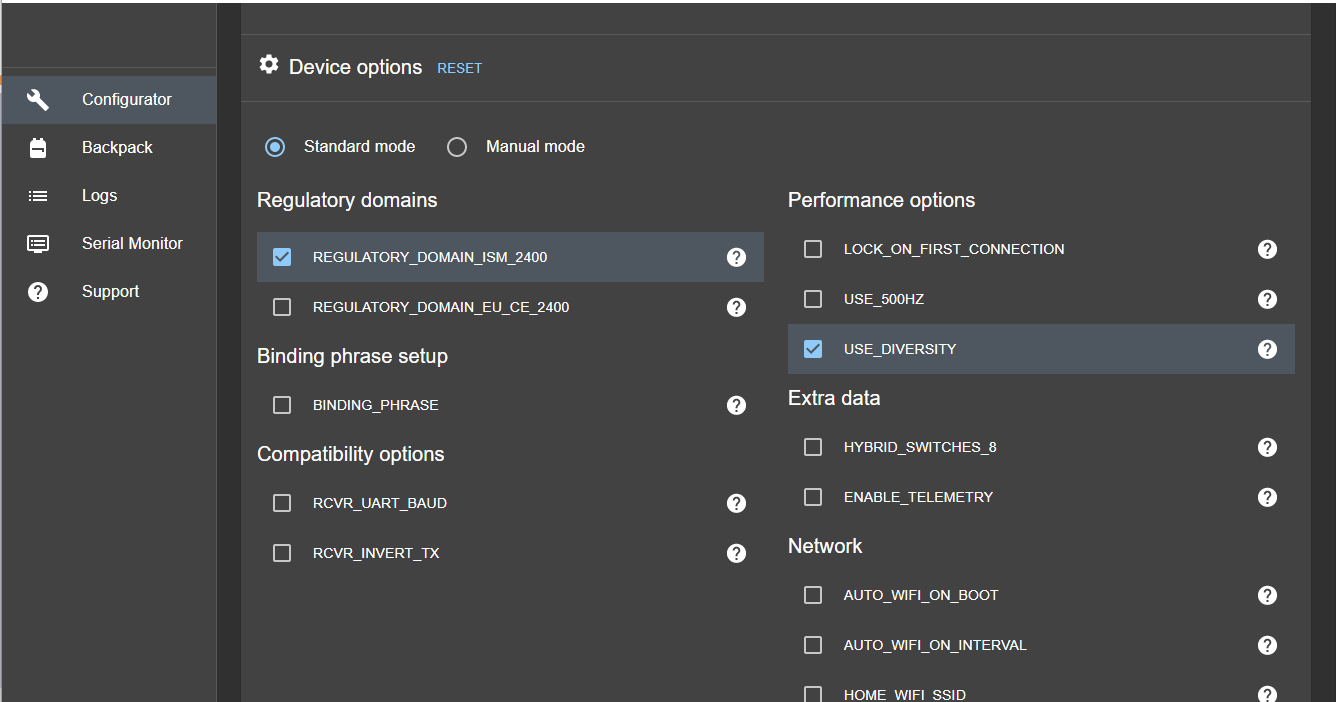
Set the device options. Since we are using dual-antenna diversity, we need to check USE_DIVERSITY; otherwise, it will defaults to single antenna.
Press and hold the firmware upgrade button on the receiver while powering it on. A solid light on the receiver indicates that it has entered firmware upgrade mode. If it is in another mode, please try again until the light stays on.
The compiler will recognize the serial port number. Select the recognized serial port number COMxx in the Manual serial device selection. Alternatively, you can leave it blank; the tool will automatically detect it during subsequent downloads.

Select BUILD & FLASH.

The program compilation process has begun and will take some time. Please be patient and follow the prompts if any errors occur.
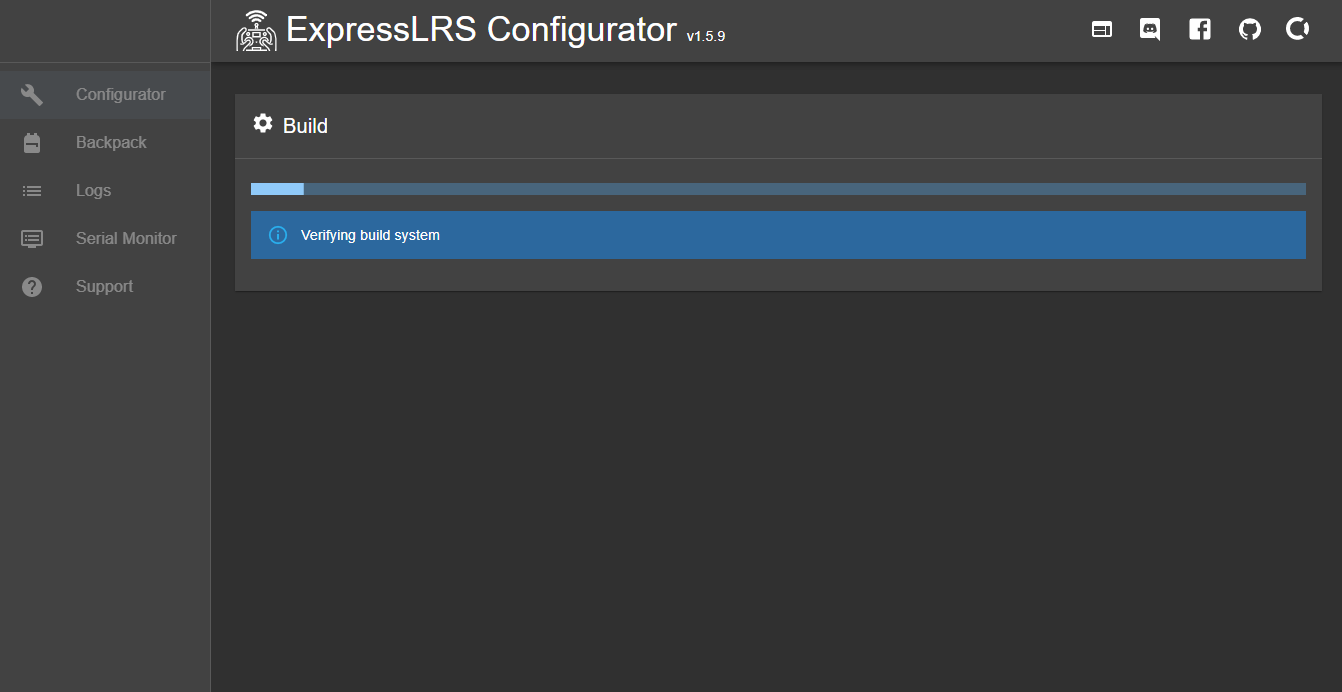
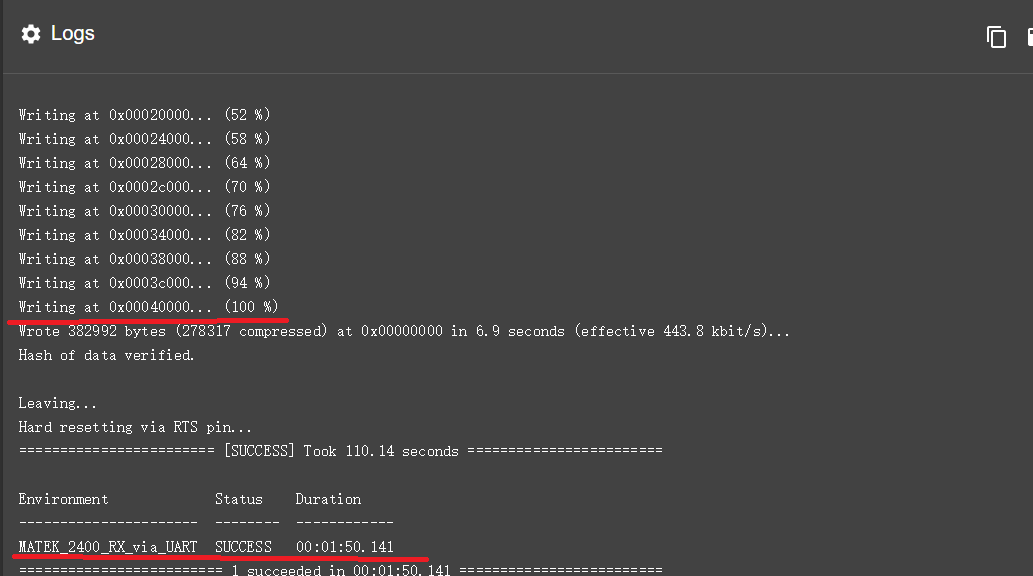
The Logs window displays the entire compilation process. When the following page appears, it means the program has been downloaded to the receiver, and you will see a green "Success" under Result!